How to remove metadata from a PDF
PDF metadata is useful when it is accurate and a liability when it is not. A file exported from a template can carry a colleague's name, an internal project title, the software your organisation uses, or the path of the document on the author's computer. Before publishing or sending a document outside your organisation, it is normal to clear it.
This guide covers what "removing metadata" actually removes, how to do it for one file and for a folder, and how to confirm it worked.
What is inside a PDF that you might want to remove
| Source | Examples | Removed by clearing metadata? |
|---|---|---|
| Info dictionary | Title, Author, Subject, Keywords, Creator, Producer, CreationDate, ModDate | Yes |
| XMP packets | Dublin Core, XMP Basic, XMP Rights, Adobe PDF schema, Media Management | Yes |
| Embedded thumbnails | A preview image of the first page | Not by default; check the output |
| Annotations and comments | Author names on comments, review history | No — those are content |
| Form data and attachments | Filled fields, embedded files | No |
| File system attributes | File name, size, timestamps, extended attributes | No — those belong to the OS |
| Document content | Names or addresses typed on the page | No |
That last row is the important one. Removing metadata does not anonymise the document. If a name appears on the page, in a signature, in a comment or in an attachment, it stays.
Remove metadata from a single PDF
In the desktop app
- Open the PDF.
- Use the Clear Document quick action to empty the Info dictionary, and Clear XMP to empty the XMP block.
- Save. Use Save as if you want to keep the annotated original.
Clearing one but not the other leaves values behind. Readers that prefer XMP will still display the old values if only the Info dictionary was cleared.
In the online editor
- Open the online editor.
- Drop the PDF onto the page.
- Delete the contents of Title, Author, Subject, Keywords, Creator and Producer, and clear the two date fields if you want those removed as well.
- Click Save and download the result.
The browser editor handles the standard fields. For the individual XMP schemas (XMP Rights in particular), use the desktop app.
Remove metadata from many PDFs
The batch editor does this in one pass:
- Open the Batch tab and choose Clear Metadata.
- Click Parameters and tick the fields to remove. Untick the ones you want to keep, such as Title; unticked fields are left untouched.
- Add the PDFs, or add a folder to process every PDF inside it.
- Set an output folder. This is strongly recommended: with an empty output folder the originals are overwritten.
- Click Begin.
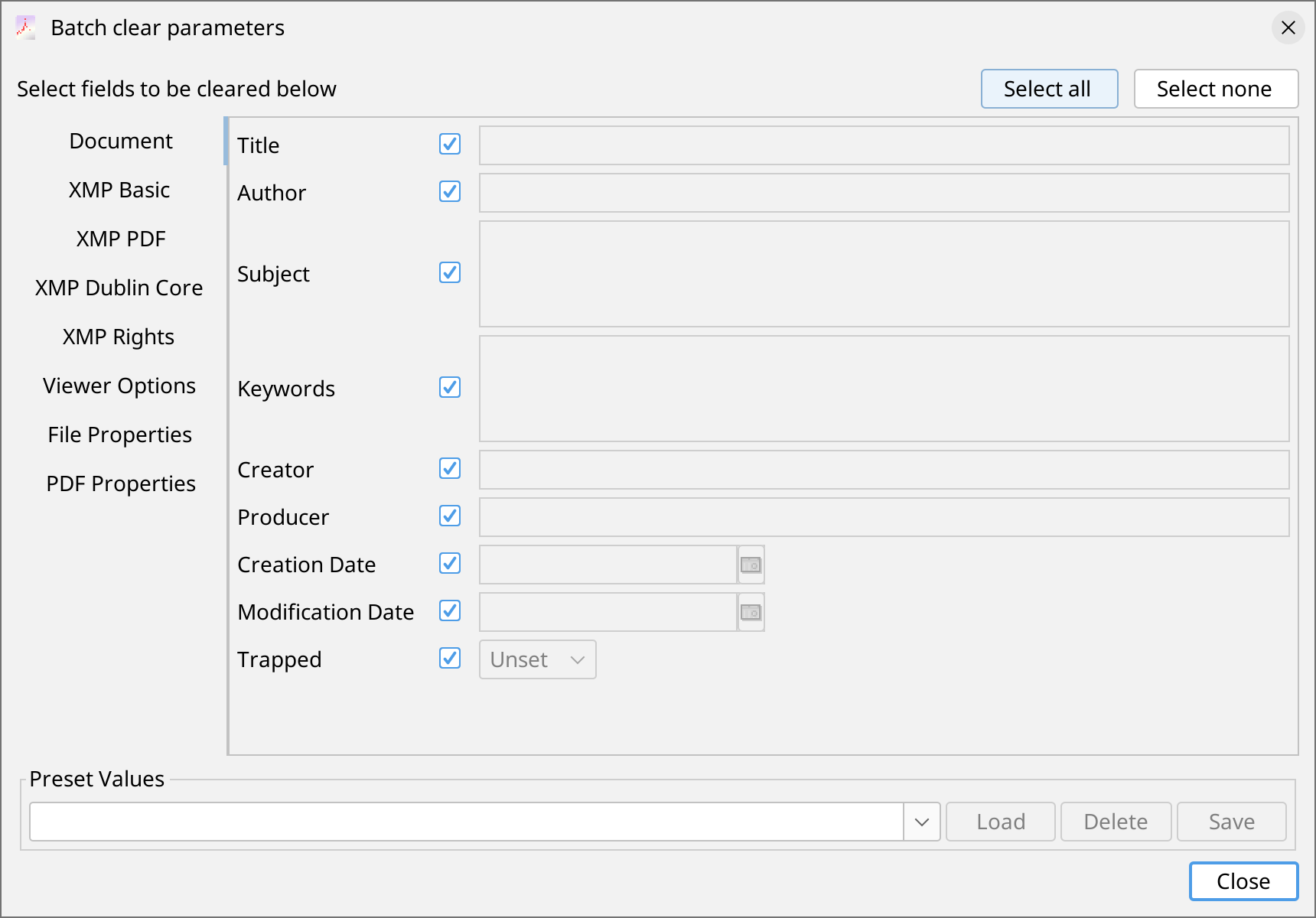
The batch tutorial covers the parameters in more detail.
Remove metadata from the command line
pmedit-cli is the fastest option for a folder and the easiest to put in a build
pipeline:
# Clear everything from one file
pmedit-cli clear all report.pdf

# Clear everything from every PDF in the directory
pmedit-cli clear all *.pdf

# Clear everything except the title and author
pmedit-cli clear all "!doc.title" "!doc.author" report.pdf
The ! prefix means "keep this field". The field names are listed in the
command line reference.
Verify that the metadata is gone
Do not assume the save worked. Check the output with a second tool:
# ExifTool prints what is actually stored in the file
exiftool report.pdf

# The app can export the same data as JSON for scripting
pmedit-cli tojson report.pdf
Also open the file in a different reader and look at its properties dialog. Firefox's File → Properties reads the file directly and is a good independent check.
A caveat about deleted values
Some tools — ExifTool is the best-known example — implement PDF edits by appending an update to the end of the file. The previous values remain in the file and can be recovered. That is fine for tidying a document and not fine if you are removing information for confidentiality reasons.
If you need the old values to be unrecoverable, rewrite the PDF after editing so unreferenced objects are dropped:
qpdf report-cleared.pdf report-final.pdf
Then verify the result with ExifTool again. Rewriting also tends to reduce file size.
Frequently asked questions
Does clearing metadata remove the author from comments?
No. Comment and annotation authors are part of the annotation objects, not the document metadata. Remove or flatten the annotations separately if they matter.
Will removing metadata break the PDF?
No. Metadata is descriptive. Pages, links, forms and signatures are unaffected — though removing a signature's metadata may invalidate the signature, so do not edit signed documents.
Can I clear metadata without opening the app?
Yes. The online editor handles single files in the browser, and
pmedit-cli clear all handles folders from a terminal.
Is metadata removal the same as redaction?
No. Redaction removes visible content and is a different, more careful process. Clearing metadata only removes the descriptive fields.