How to change PDF metadata
Every PDF carries descriptive information about itself: a title, an author, a subject, keywords, the application that created it and the application that produced the final file. This is the PDF's metadata, and it travels with the file wherever it goes.
There are several ways to change it. This page covers the four that work for most people, in order of how often they are the right answer.
Two places store metadata, and they can disagree
A PDF can store the same information twice:
- The Info dictionary (called Document metadata in this editor). This is
the older mechanism: a simple list of key/value pairs such as
Title,Author,Subject,Keywords,Creator,Producer,CreationDateandModDate. - XMP metadata. A newer, XML-based block that can describe the same properties in more detail, split across schemas such as Dublin Core, XMP Basic, XMP Rights and the Adobe PDF schema.
Most readers show the XMP value when both exist, and fall back to the Info dictionary when the XMP field is empty. That single fact explains most "I changed the metadata but it still shows the old value" problems.
In this editor, the Document tab edits the Info dictionary and the XMP tabs edit XMP. The quick action Document to XMP copies the Info values into their XMP counterparts, so both stay consistent.
Which fields can you change?
| Field | What it describes | Where it is visible |
|---|---|---|
| Title | The document's name, which may differ from the file name | Window title bar, document properties dialogs, search results |
| Author | The person or organisation responsible for the content | Properties dialogs, library and document management systems |
| Subject | A short description of the content | Properties dialogs, catalogues |
| Keywords | Terms used for search and classification | Properties dialogs, desktop search indexes |
| Creator | The application that authored the source document | Properties dialogs, forensics |
| Producer | The application or library that turned it into a PDF | Properties dialogs, forensics |
| CreationDate | When the document was created | Properties dialogs, file management |
| ModDate | When the document was last modified | Properties dialogs, file management |
If you only need to change the dates, see the timestamp guide as well.
Option 1: change metadata in the desktop app
This is the most complete option, because it exposes the Info dictionary and all of the XMP schemas.
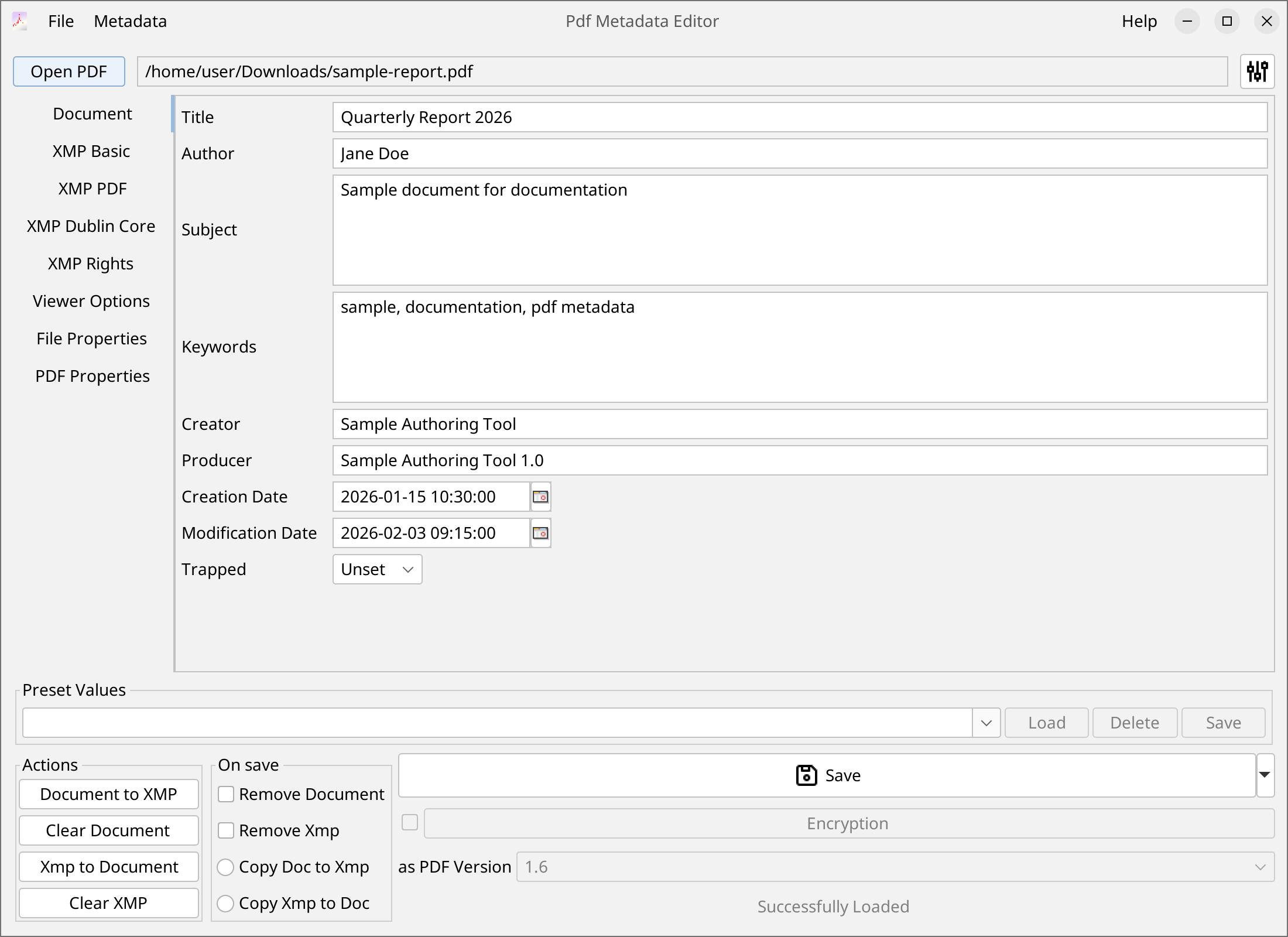
- Click Open PDF and select the file.
- Stay on the Document tab and edit the fields you need. In the example above, Title and Author are being changed.
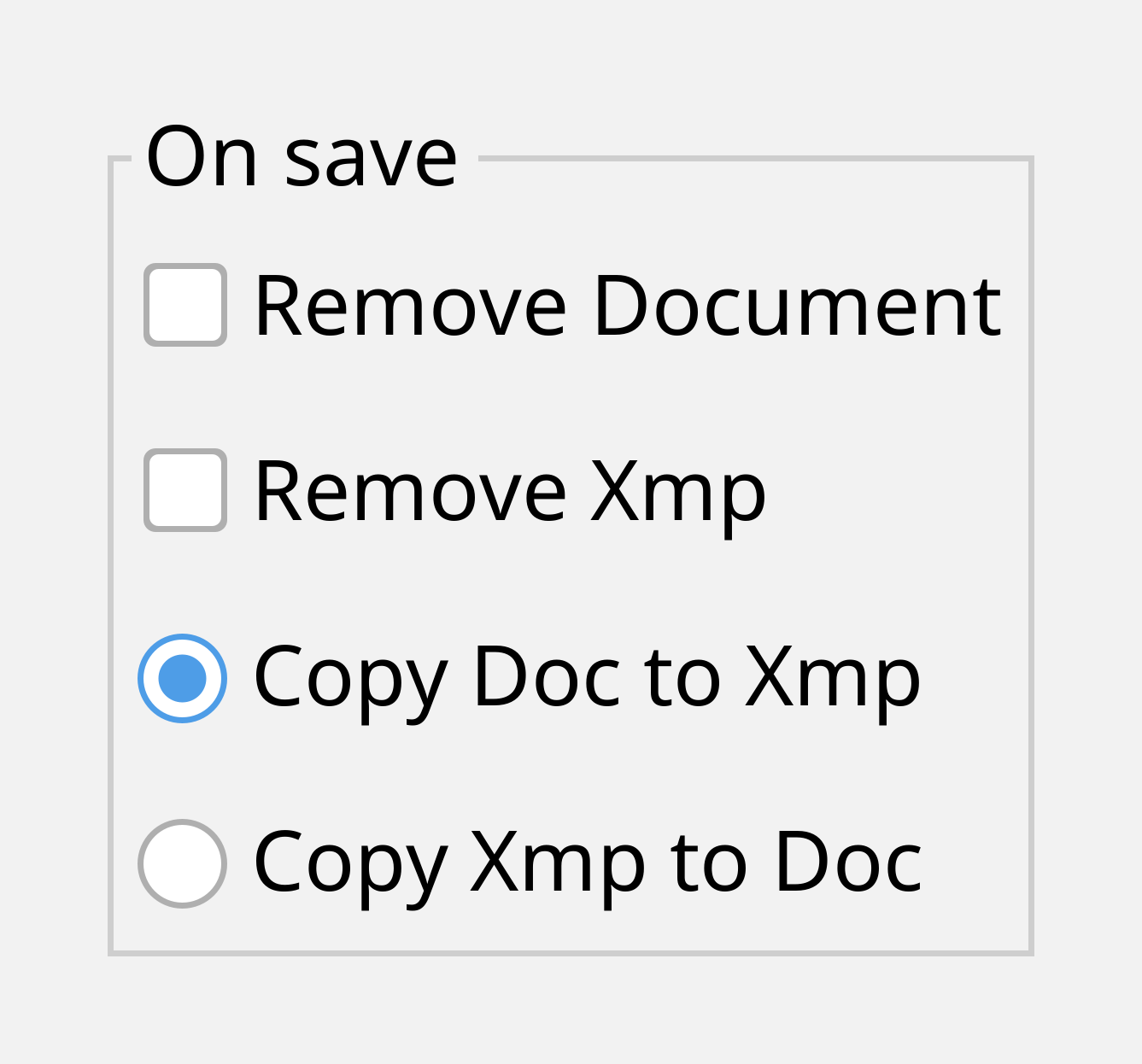
- In the On save panel, select Copy Doc to Xmp. This writes the same values into the XMP block on save, so readers that prefer XMP show the new values too.
- Click Save. Use Save as if you want to keep the original untouched.
If the PDF is password protected, the app asks for the password before it can rewrite the file. PDF permissions can also forbid modification; in that case the save will fail and you will need the owner password.
Option 2: change metadata in the browser
The online editor is the fastest route for a single file. It runs entirely in your browser — the PDF is not uploaded to a server.
- Open the online editor.
- Drag a PDF onto the drop zone, or click to choose a file.
- Edit Title, Author, Subject, Keywords, Creator, Producer, Created Date and Modified Date.
- Click Save. The edited file is downloaded to your computer.
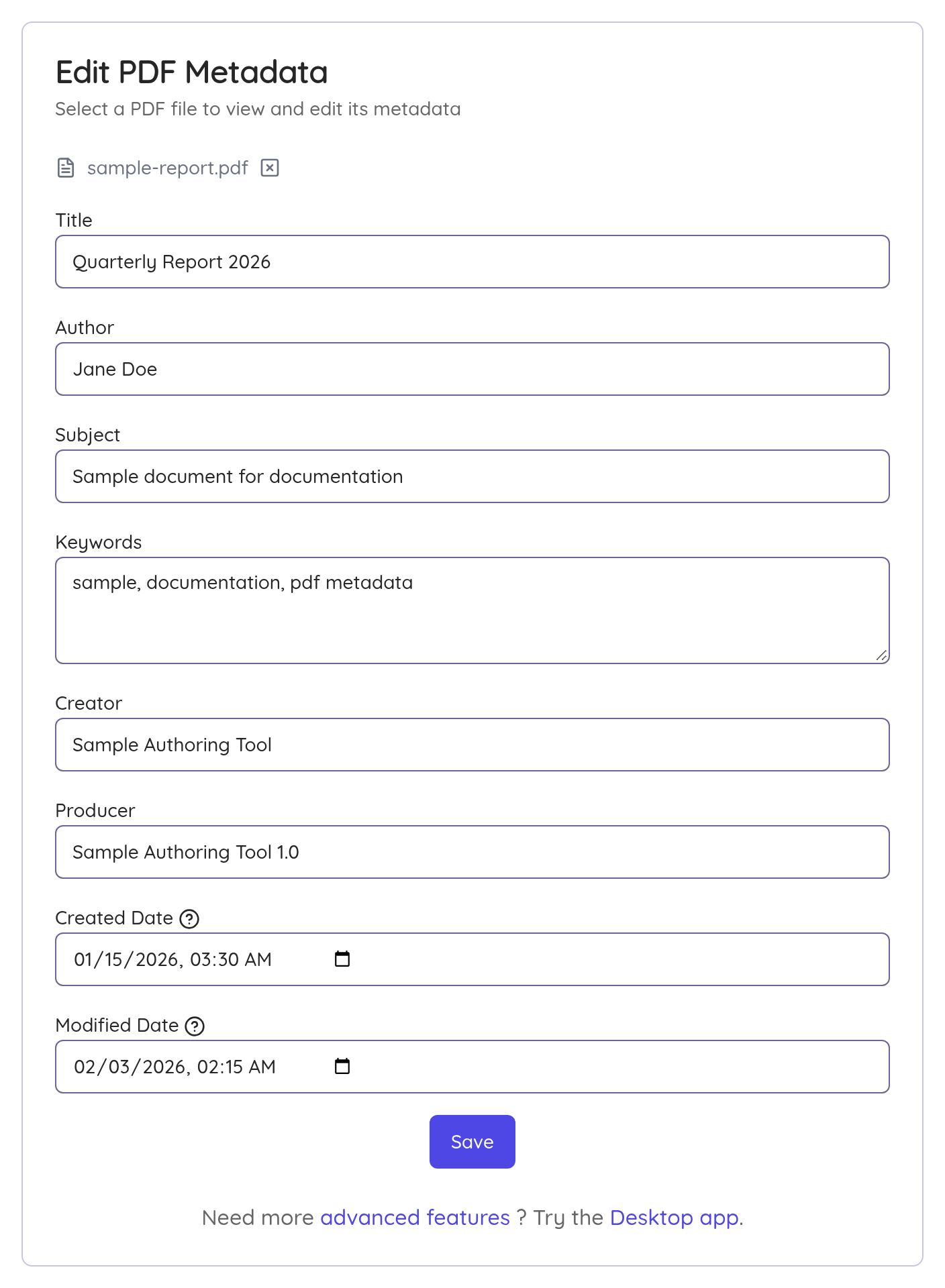
The browser editor does not open password-protected PDFs and does not expose the individual XMP schemas. Use the desktop app for those.
Option 3: change metadata on many files at once
If you have a folder of documents, do not repeat the single-file steps. Use the batch editor:
- Open the Batch tab and choose Set Metadata.
- Click Parameters and tick only the fields you want to change, then enter the new values. Fields you leave unticked keep their current values.
- Add the PDFs, or add a folder to process every PDF inside it.
- Optionally choose an output folder so the originals are left untouched.
- Click Begin.
For a field-by-field walkthrough with screenshots, see the batch tutorial.
Option 4: change metadata from the command line
The desktop package includes pmedit-cli, which is useful for scripts and CI
jobs. The field names are documented in the
command line reference.
# Set the title and author on a single file
pmedit-cli edit "doc.title=Quarterly Report 2026" "doc.author=Jane Doe" report.pdf

# Same change across every PDF in the current directory
pmedit-cli edit "doc.author=Jane Doe" *.pdf

# Copy the Document values into XMP afterwards
pmedit-cli doctoxmp report.pdf
On Windows the executable is pmedit-cli.exe and ships with the installed
version.
Changing the creation and modification dates
Dates live in both stores as well, and they are easy to confuse with the
operating system's file timestamps. Changing the PDF's CreationDate does not
change the date the file was created on disk, and vice versa. The
timestamps guide explains the difference and where each
value is edited.
Why the change sometimes does not appear
| Symptom | Likely cause | Fix |
|---|---|---|
| A reader still shows the old title | The reader prefers XMP, and only the Document value was changed | Select Copy Doc to XMP before saving, or edit the XMP tab directly |
| The property dialog is empty | The file never had metadata, or it was cleared | Enter the values you want and save |
| The change is visible in one app and not another | Apps disagree about XMP precedence | Make both stores consistent |
| Saving fails | The PDF is encrypted or permissions forbid modification | Open with the owner password, or remove protection first |
| The new file is much larger | The app rewrote the document with a different compression setting | Check the compression option in Preferences |
Frequently asked questions
Does changing metadata alter the document content?
No. Metadata is descriptive information stored alongside the pages. The visible content, annotations and form data are not changed by editing these fields.
Can I change metadata without changing the file name?
Yes. The file name on disk and the PDF's internal Title are independent values. Use Save rather than Save & Rename if you want to keep the file name. The batch editor can rename files from metadata when you do want them to match.
Is the online editor safe for confidential documents?
The online editor parses and rewrites the PDF in your browser using client-side JavaScript. The file is not uploaded to our servers. For a fully offline workflow, use the desktop app.
Can I set metadata that no reader will see?
You can store arbitrary values in the fields, but they remain readable by anyone who inspects the file. Metadata is not a secure channel and is not proof of authorship or creation date.