How to extract PDF metadata
Extracting metadata means reading the fields out of a PDF and writing them into a format that other tools can process: a CSV for a spreadsheet, JSON for a script, or YAML for a configuration pipeline.
Typical reasons to do it: auditing which documents carry which author, finding files with a stale title, importing records into a document management system, or checking what a batch of PDFs actually contains before publishing them.
What can be extracted
The desktop tool exports the same fields it can edit, including:
| Field | Example |
|---|---|
file.name | report (no extension) |
file.nameWithExt | report.pdf |
file.fullPath | report.pdf, or the path exactly as passed |
file.sizeBytes | 482133 |
doc.title | Quarterly Report 2026 |
doc.author | Jane Doe |
doc.subject | Finance |
doc.keywords | finance, 2026 |
doc.creator | Word |
doc.producer | LibreOffice |
dc.title, dc.creators, dc.subjects | XMP Dublin Core values |
basic.createDate, basic.modifyDate | XMP dates |
The complete list is in the command line reference.
Extract metadata in the desktop app
The batch editor can export a folder of PDFs in one run, which is usually faster than a script if you only need the spreadsheet.
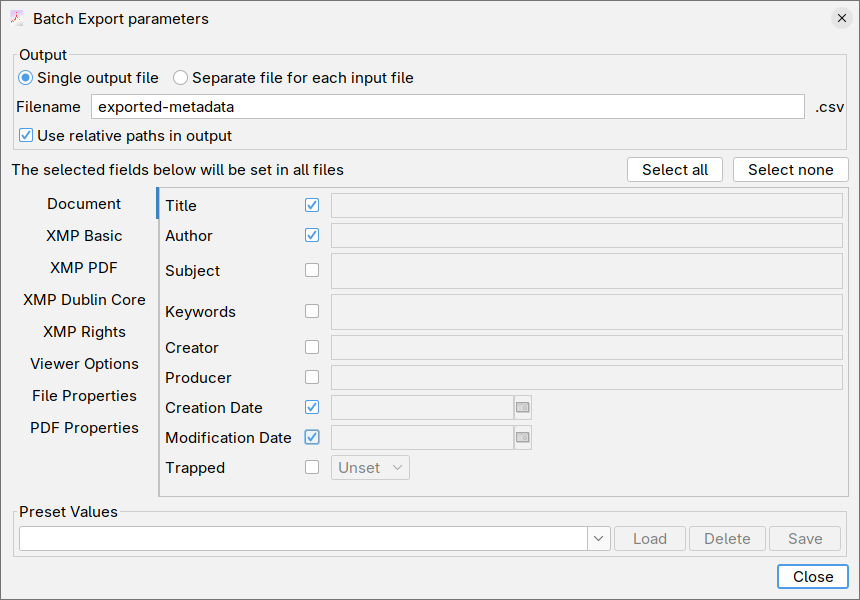
- Open the Batch tab and choose Export metadata as CSV (or JSON, or YAML).
- Add the PDFs, or add a folder to include every PDF inside it.
- Click Parameters and select the fields to include. By default all fields are exported.
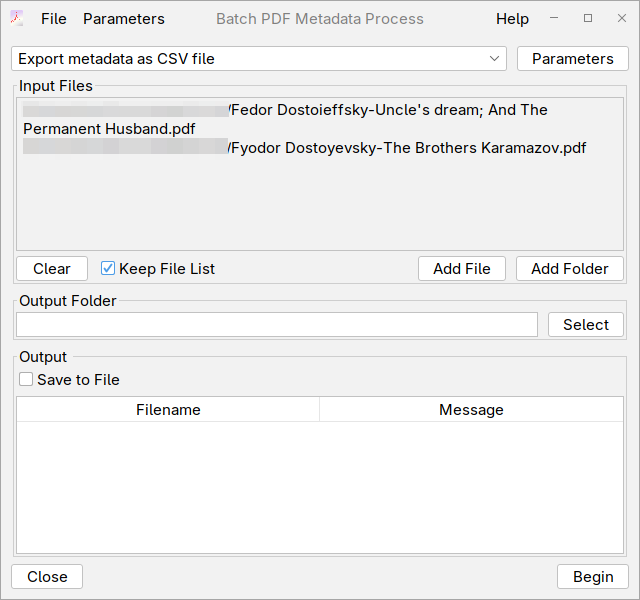
- Enable Single output file so you get one row per PDF instead of one file per document.
- Click Begin. The file is written next to the input files.
The CSV guide covers the round trip: export, edit in a spreadsheet, then import the changes back.
Extract metadata from the command line
pmedit-cli writes the same data to standard formats. This is the practical
option for automation. List the fields you want before the file names — every
field is disabled by default, so a command with no fields is a no-op.
# One CSV containing a row per PDF
pmedit-cli tocsv file.name doc.title doc.author doc.producer report.pdf invoice.pdf

# JSON, convenient for jq and scripts
pmedit-cli tojson file.name doc.title doc.author *.pdf

# YAML
pmedit-cli toyaml doc.title doc.author *.pdf

For a directory tree, let the shell find the files. xargs appends the paths
after the fields, which is the order the command expects:
find ./documents -name "*.pdf" -print0 | xargs -0 pmedit-cli tocsv file.name doc.title doc.author
Then process the result with the tools you already have:
# Export the columns you want to check
pmedit-cli tocsv file.name doc.title doc.author *.pdf

# Which documents have no author?
awk -F, 'NR>1 && $3=="" {print $1}' metadata-export.csv
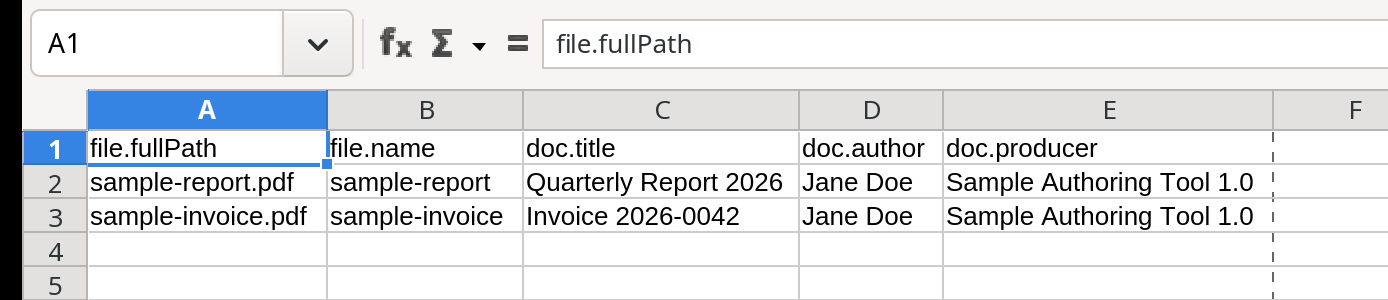
The exact column order depends on the fields selected, so check the header row before writing an awk or pandas step.
A note on file.fullPath
The export includes the path of every file exactly as it was passed on the
command line — relative if you passed a relative path, absolute if you passed one.
That is what makes the round trip possible: the import uses file.fullPath to find
the original PDF. If you edit the spreadsheet and re-import it, do not change that
column.
If you are sharing the export with someone else, remember that the paths can reveal the folder structure and user names of the machine that produced it. Strip or rewrite the column first.
ExifTool comparison
ExifTool is the other common choice, and it is excellent. The difference is in scope and output shape.
| PDF Metadata Editor | ExifTool | |
|---|---|---|
| Field coverage | PDF Info dictionary and XMP schemas | Very broad, across hundreds of formats |
| Output for spreadsheets | One row per file, directly | -csv works, but you curate the columns |
| Read and write | Both | Both |
| Batch a folder | Built into the GUI and CLI | Shell loops or -r with -w |
| Requires | Nothing for the GUI | Perl (installed on most Linux and macOS systems) |
| Best at | Structured exports and round-tripping edits | Forensic depth and format breadth |
Use ExifTool when you need to inspect everything a file contains. Use this tool when you want a predictable table of PDF fields that you can edit and import back.
Verifying an export
Two checks catch most mistakes:
- Open the CSV and confirm the header row contains the fields you expected.
- Count the rows. One row per PDF, plus the header, is the correct shape for a single-output export.
If the row count is lower than the number of PDFs, some files were skipped — usually because they are encrypted or unreadable. The batch log reports failures.
Frequently asked questions
Can I export metadata from password-protected PDFs?
You need the password. The batch editor will report the files it could not open rather than silently skipping them.
Does extraction change the PDFs?
No. Export is read-only; the original files are not modified.
Can I export only the XMP fields?
Yes. In the batch parameters, deselect the Document fields and keep the XMP fields you need, or select the exact columns in the CSV output.
Which format should I choose?
CSV if a person will read or edit it, JSON if a program will consume it, YAML if it feeds a configuration or deployment pipeline.