PDF properties editor
"Document Properties", "PDF properties", "PDF info" and "PDF metadata" all refer to the same thing. When a reader shows you a Title, Author, Subject or Keywords for a PDF, it is reading them from the file's metadata — either the older Info dictionary or the XMP block.
That is why the search results for pdf properties editor and pdf info editor point at metadata tools. There is no separate "properties" system to edit.
The same fields, under different names
Different applications label the same values differently. This table maps them.
| What you see in Acrobat | Info dictionary key | What the editor calls it |
|---|---|---|
| Title | Title | Title (Document tab) / dc:title |
| Author | Author | Author / dc:creator |
| Subject | Subject | Subject / dc:description |
| Keywords | Keywords | Keywords / pdf:Keywords |
| Created | CreationDate | CreationDate / xmp:CreateDate |
| Modified | ModDate | ModDate / xmp:ModifyDate |
| Application | Creator | Creator / xmp:CreatorTool |
| PDF Producer | Producer | Producer / pdf:Producer |
| PDF Version | header | PDF properties → Version |
| Page Size | page boxes | not part of metadata |
Acrobat's Description tab shows the first four. Its Custom tab holds user-defined key/value pairs, and the Advanced tab exposes the raw Info dictionary. Those last two are Acrobat-specific views; a metadata editor works with the standard fields and the XMP schemas.
Where to find Document Properties in common readers
| Application | Where | Can you edit? |
|---|---|---|
| Adobe Acrobat | File → Properties (Ctrl+D / Cmd+D) → Description | Yes |
| Firefox | File → Properties, or the menu in the PDF toolbar | No, view only |
| Google Chrome | No document properties dialog for PDFs | No |
| macOS Preview | Tools → Show Inspector (Cmd+I) | Keywords only |
| macOS Finder | Right-click → Get Info | File attributes and indexed metadata, read-only |
| PDF Metadata Editor | Document and XMP tabs | Yes |
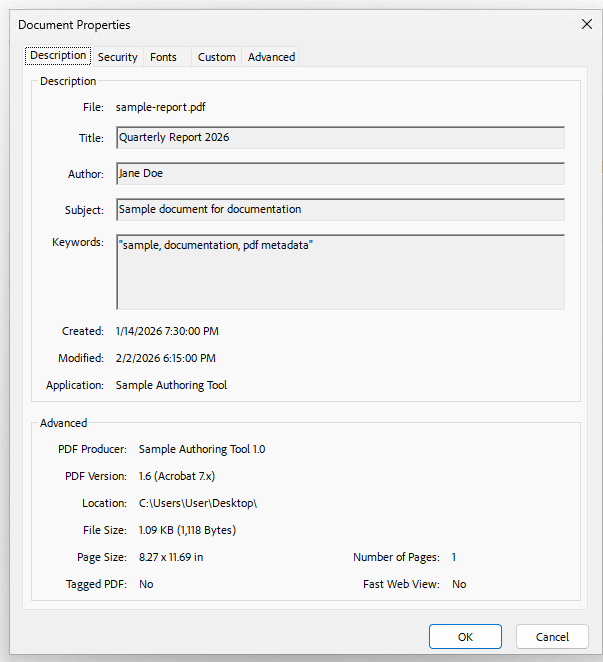
The Firefox dialog is useful when you want a second opinion on what a PDF actually contains, because it reads the file directly rather than a cached index. Chrome's viewer shows the document title in the tab but gives you no way to inspect or change the properties.
How to edit PDF properties online
The online editor exposes the standard properties without an installation and processes the file in your browser.
- Open the online editor.
- Drop the PDF onto the page.
- Edit Title, Author, Subject, Keywords, Creator, Producer, Created Date or Modified Date.
- Click Save to download the updated file.
Because both the Info dictionary and the XMP block can hold these values, some readers may keep showing the old value if only one of the two was written. The desktop app solves that with a single on-save option, described below.
How to edit PDF properties in the desktop app
- Open the PDF.
- Use the Document tab for the Info dictionary fields.
- Use the XMP tabs for the corresponding schema values:
- XMP Basic — creation and modification dates, creator tool, labels
- XMP PDF — producer, keywords, PDF version
- XMP Dublin Core — title, creators, description, subjects, rights
- In the on-save panel choose Copy Doc to XMP so the two stores agree.
- Click Save.
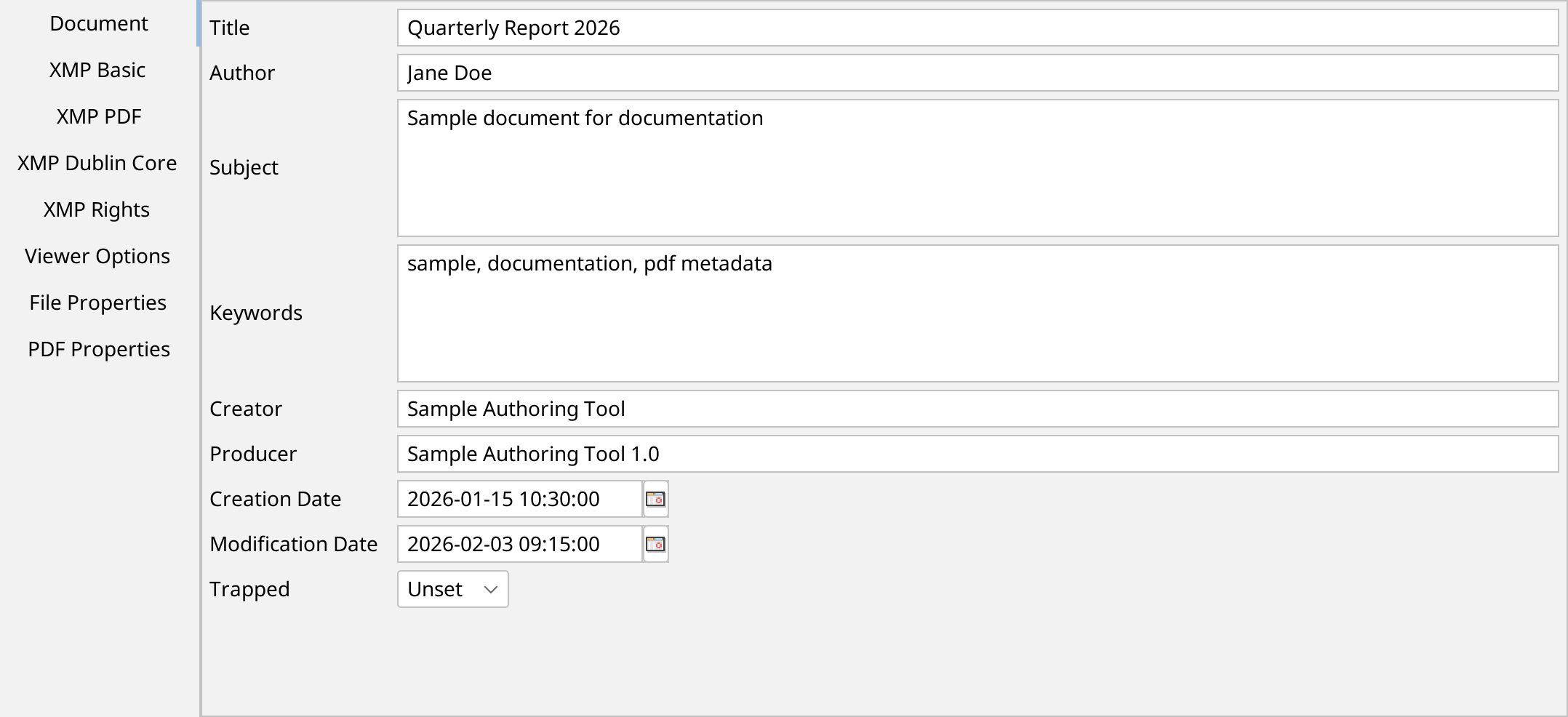
Both panes are shown in the interface reference and the field definitions are in the Info metadata and XMP metadata references.
Why two applications show different values
A PDF can carry both an Info value and an XMP value for the same field, and they can differ — for example after an application updated one but not the other. Readers resolve this in different ways: most prefer XMP, some show the Info value, and some show whichever they read first.
The reliable fix is to make both stores identical. In this editor that means using Copy Doc to XMP (or its inverse, XMP to Document) before saving. If you are repairing a file produced by another tool, check both.
Properties that are not metadata
Some things people call "PDF properties" are not metadata at all:
- Page size, orientation and page count come from the page tree.
- PDF version is a header value, editable under PDF properties in the app.
- Encryption and permissions are security settings, not descriptive metadata.
- Fonts and images are resources used by the pages.
- File size, creation date on disk and file name belong to the operating system, not the PDF.
Editing metadata will not change any of these.
Frequently asked questions
Is "PDF info" the same as metadata?
Yes. The Info dictionary is the original PDF metadata store. Most tools still call it Document Info or Document Properties.
Can I edit the properties of a password-protected PDF?
You need the password. The online editor refuses encrypted files; the desktop app can open them once the password is supplied.
Will changing the properties change how the PDF looks?
No. The properties are descriptive. Pages, images, annotations and form fields are unaffected.
Why is the Author field full of my computer's user name?
Many authoring applications fill the Author field from the account that created the document. That is exactly the kind of value worth correcting before you send a file outside your organisation — see removing metadata.