Go Back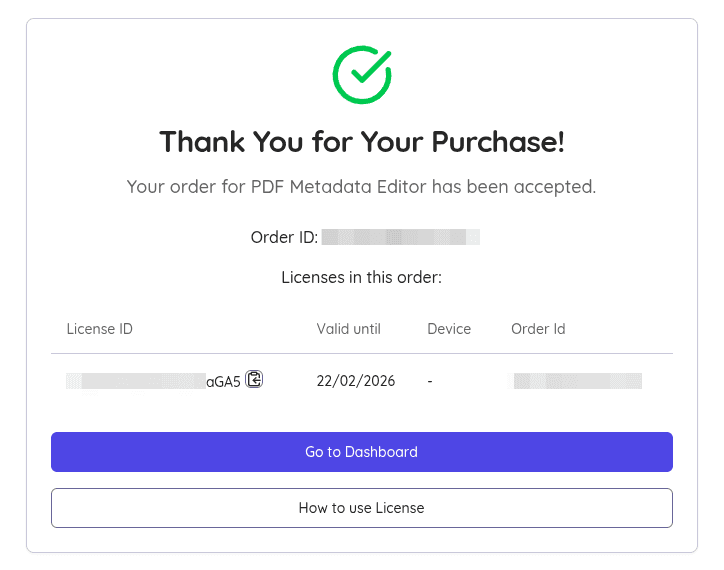
How to install Pro license
- Purchase License here
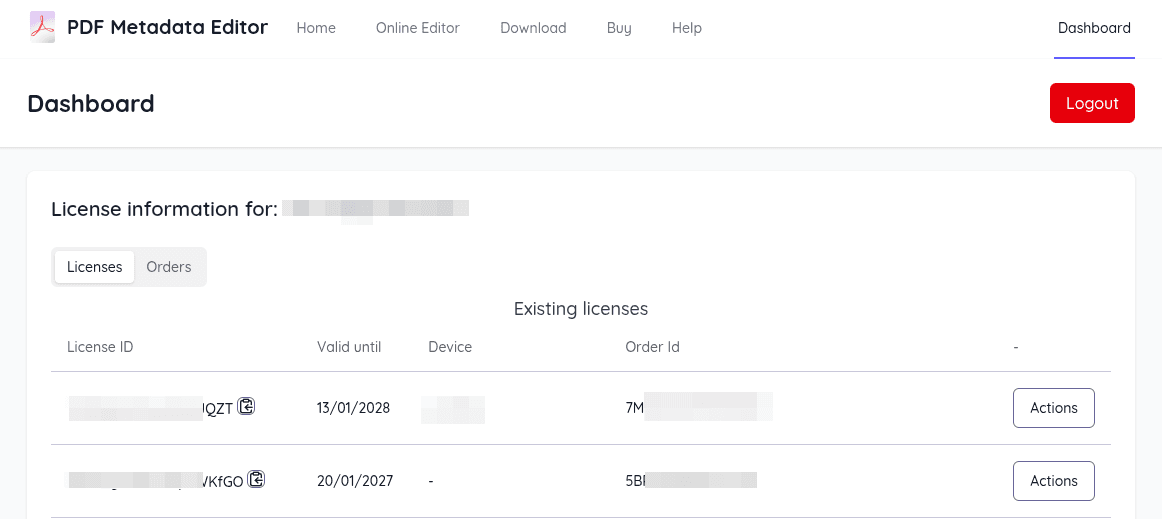
- After purchase , get your License ID form the purchase Success Page or the Dashboard
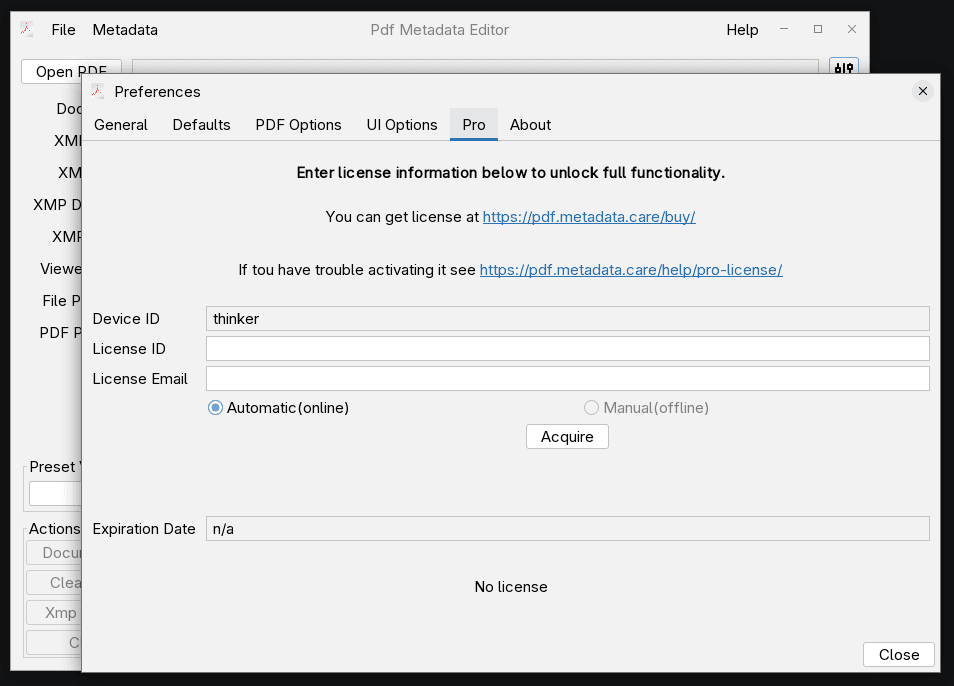
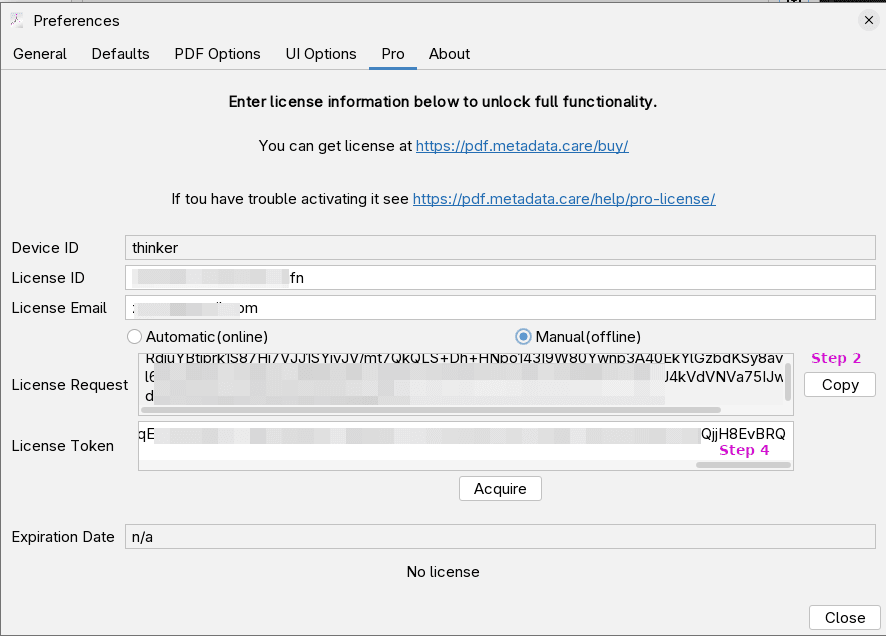
- Open File -> Preferences⚙ -> License
- Enter the License ID and License Email
Acquire with Internet Access
Click the Acquire button, the license will be installed and you will see a success message.
Acquire w/o Internet Access
- Select the Manual(offline) option.
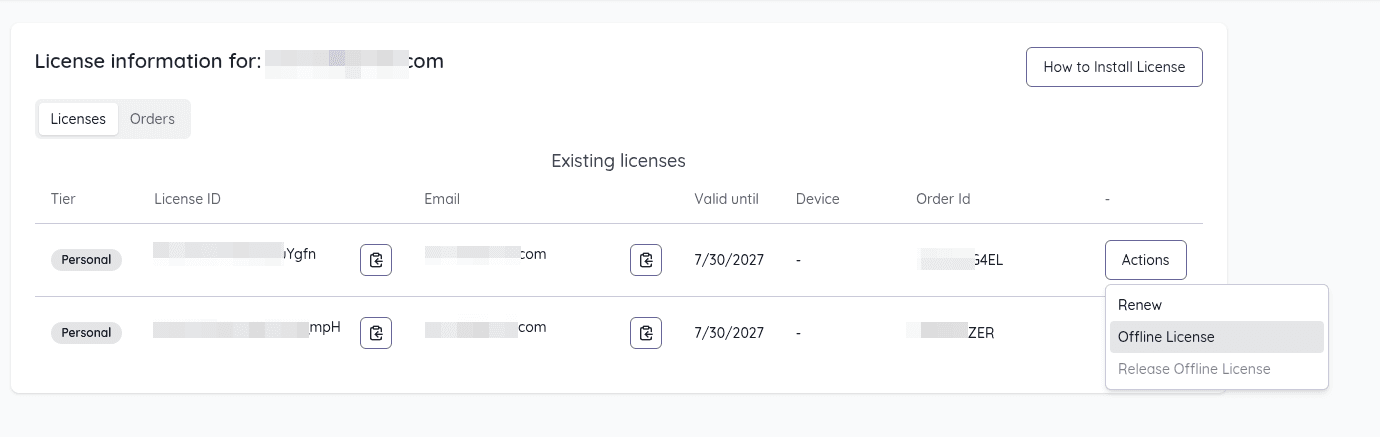
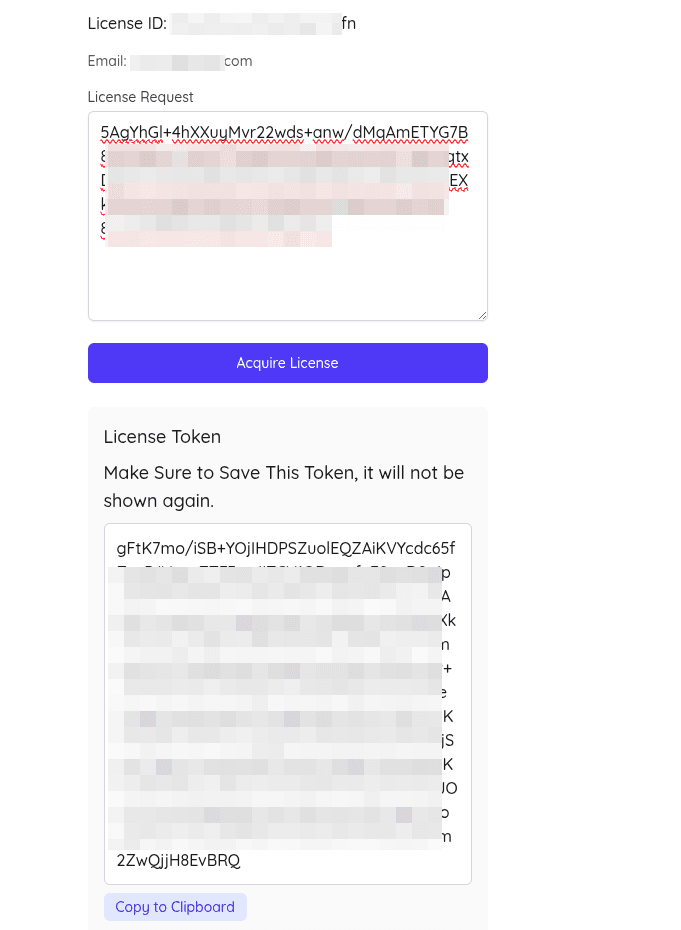
- You will see a token, in the License Request field, copy it and go to your dashboard, click on the Actions button for the License ID you have used in the previous step and select Offline License
- In the Offline License page, paste the token you copied from the app and click Acquire License. You will get a license token, copy it and go back to the app.
- Paste the license token you copied from the dashboard into the License Token field and click Install. You will see a success message.
Linux Flatpak
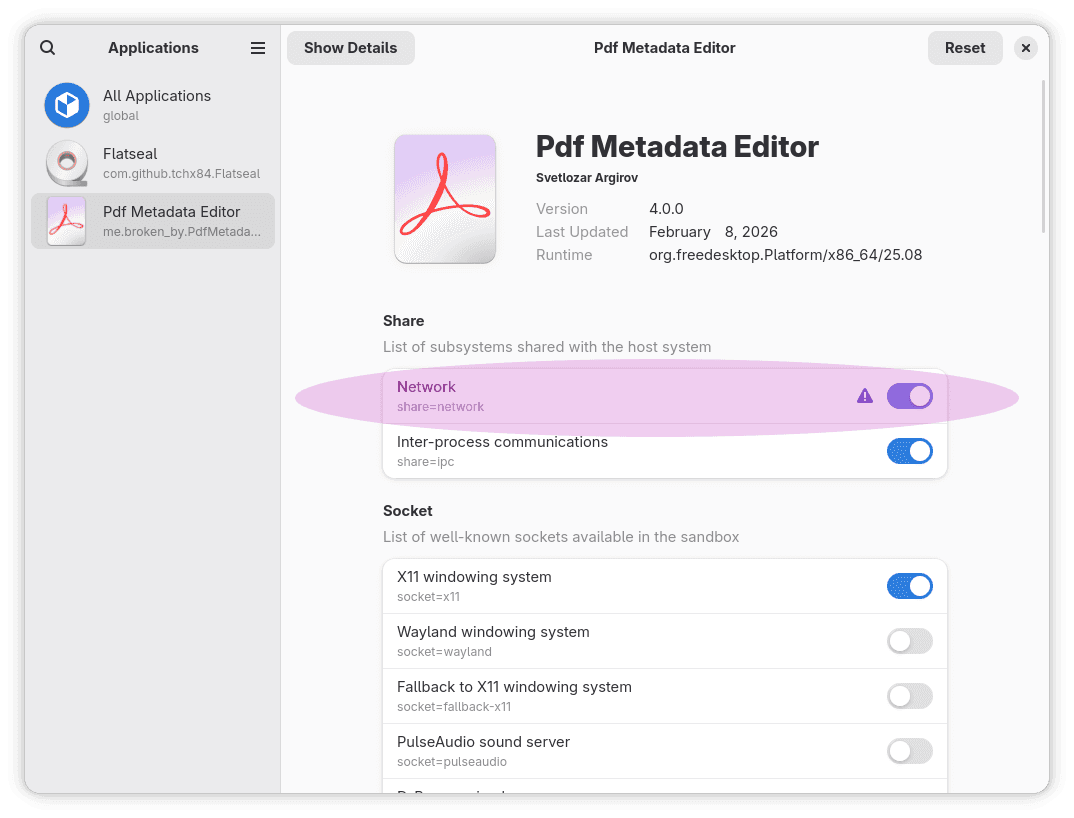
By default the Flatpak manifest doesn't allow network access for the app, as it is not needed for normal operation. Network is needed however for installing license.
You can enable network access for the flatpak version either via the command line like so :
flatpak override --user --share=network me.broken_by.PdfMetadataEditor
Or by using graphical Application like Flatseal
Installing via CLI
With Internet Access
Installing
Run the following command
pmedit-cli.exe --license=email,licenseID
Releasing
Run the following command
pmedit-cli.exe --releaseLicense
Without Internet Access
Installing
- Run
pmedit-cli.exe --offline --license=email,licenseID
You will see the following output
Here is your license acquire request, use in the the dashboard to obtain actual license.

E6jCAWKS+aaQyHOpy3QdvAWBaMURXdHHHwf2RsJF2fpdVpTREjcew8OCfrxGkL9ZX/LnAI56YhJs
TVYkVOuNXXldwUryh4PgBaqGq6DvKT0wlfTw96aiicasl1sxVO6FO849guLT2vVy58cqWa7T2Uo+
vOkFenQE536GXqdg6M9Ua7o=
- Go to your dashboard, click on the Actions button for the License ID you have used in the previous step and select Offline License
- Enter the token you obtained from the first step into the form and click Acquire License
- You will get a license token, pass it back to the command line like so:
pmedit-cli.exe --offline --license=email,licenseID
Output:
Installed license : Success
Licensed to: test@example.com
License ID:  _xbgsdshpVb1YsdquZaGA5
Expires at:  Sun Feb 22 17:48:09 EET 2026
Releasing
pmedit-cli.exe --offline --releaseLicense
You will see the following output
Here is your license release request, use in the the dashboard to release the license.

CK3CtsWQPiIi8dMUiH1iMGMe5asadf/wd1bSe4znZoE0Qb5FKwCT6QH5ebV8FwQ+GfmcCu24tj7l4
s1weDOt7fhzR+mjiJJmy81rGjS4a3d2C6Q0qvw/tIQMwvkmCvg9DvwGpdFBFqSHpiEDz59mhR3foM
idTWfV77AG5kvUvk6QyO9XizIkuywNg0cZFKqAHzAZk+YU5QpPH4bEwWu+DuUhEp
- Go to your dashboard, click on the Actions button for the License ID you have used in the previous step and select Release Offline License
- Enter the token you obtained from the first step into the form and click Release License
Showing the currently installed License
pmedit-cli.exe --showLicense
Output:
Installed license : Success
Licensed to: test@example.com
License ID:  _xbgsdshpVb1YsdquZaGA5
Expires at:  Sun Feb 22 17:48:09 EET 2026