Batch Editor
Batch Editor Main Window
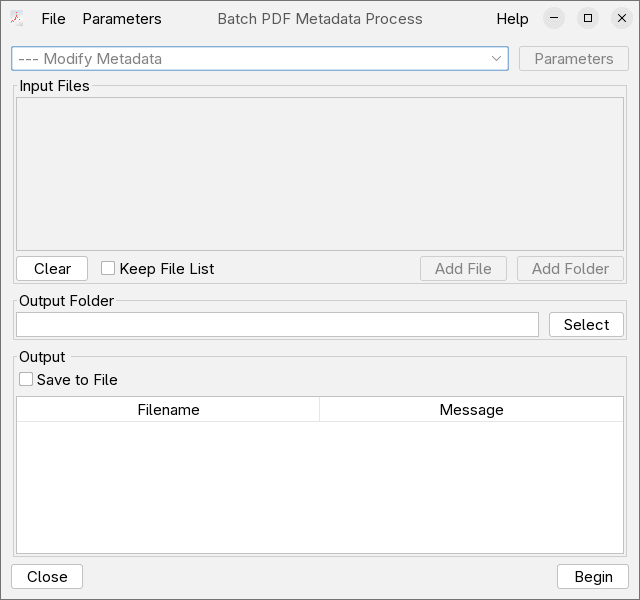
Select Batch Operation
Select the operation you want to perform in batch. Here are the available options:
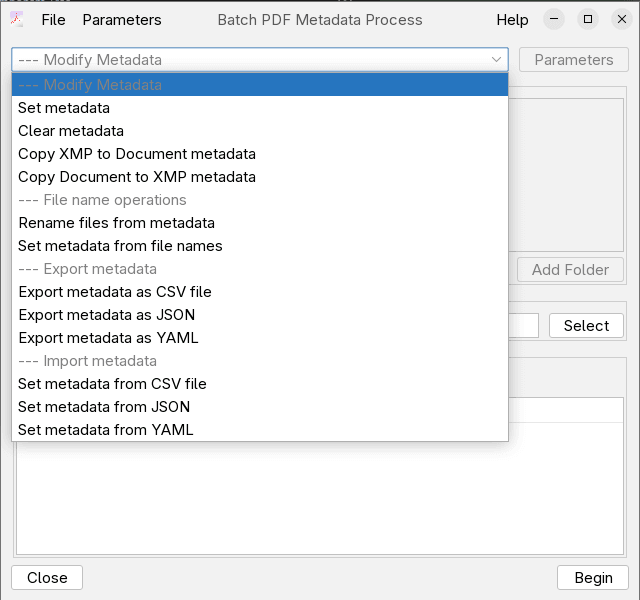
Metadata editing:
- Set Metadata - set one or more metadata fields to on all files
- Clear Metadata - remove all metadata from files
- Copy Document to XMP - Copy the Document metadata values to their respective XMP fields
- Copy XMP to Document - Copy the XMP metadata values to their respective Document fields
Filename :
- Rename files from metadata - rename files according to their metadata values
- Set Metadata from file names - parse file name according to a specified and place the parsed fields into file metadata
Export :
- Export metadata as CSV - export files metadata to CSV format, as either single CSV file or 1 CSV file for each PDF
- Export metadata as JSON - same but in JSON format
- Export metadata as YAML - same but in YAML format
Import :
- Set metadata from CSV file - set metadata field to values read from CSV file(s)
- Set metadata from JSON file - same but use JSON
- Set metadata from YAML file - same but use YAML
Batch Parameters
The parameters for the batch operation. Different parameters can be configured for each operation.
Set Metadata
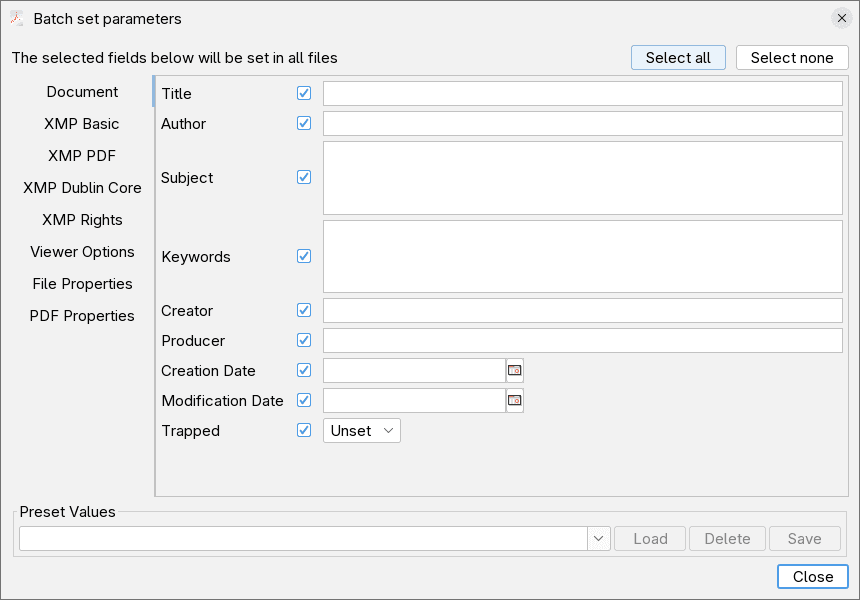
Populate the fields you want set on each file. Note that only the ones that has the checkbox ticked will be considered. So if you want
to apply to only few fields, w/o touching the rest use Select none to disable all fields, and select only the fields you want applied.
Clear Metadata
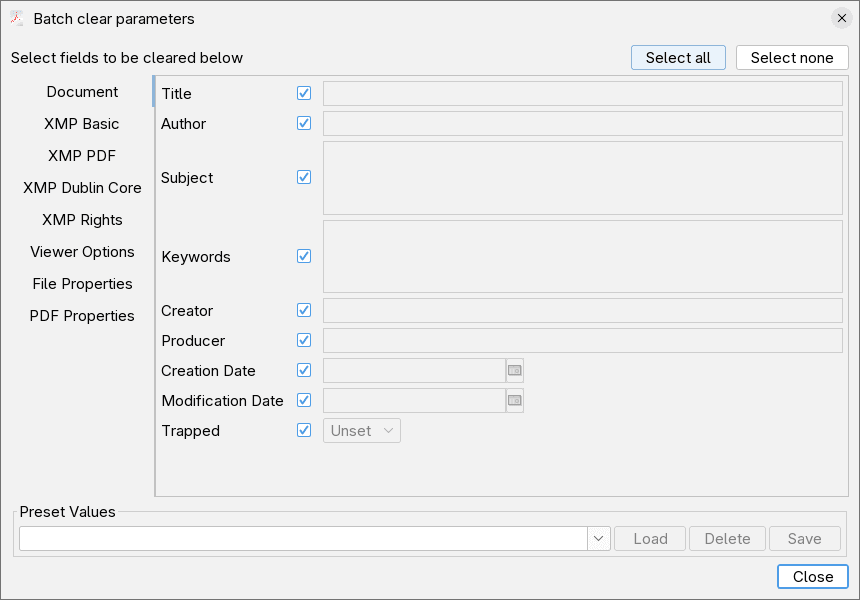
Use the checkboxes to select which fields you want cleared.
Rename files from metadata
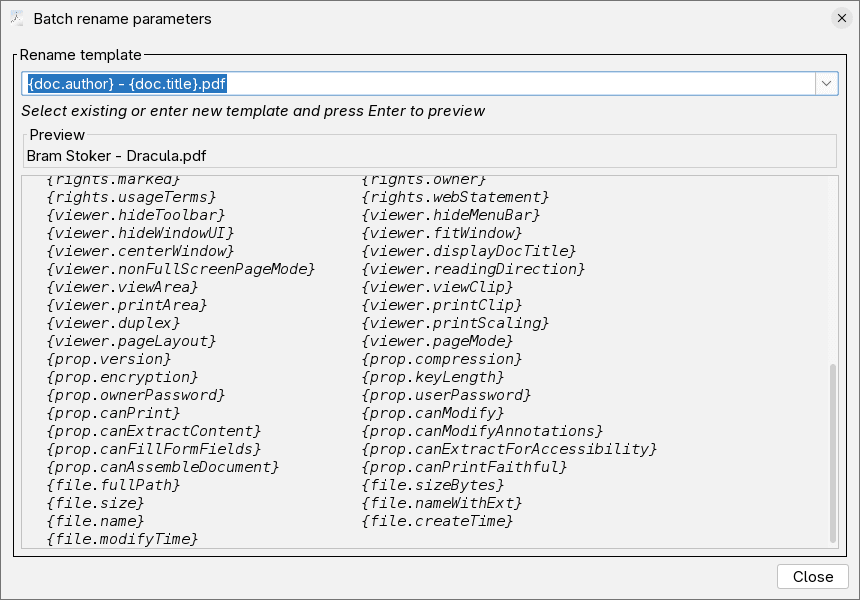
Configure a rename template to be used for the batch rename.
Set metadata from file names
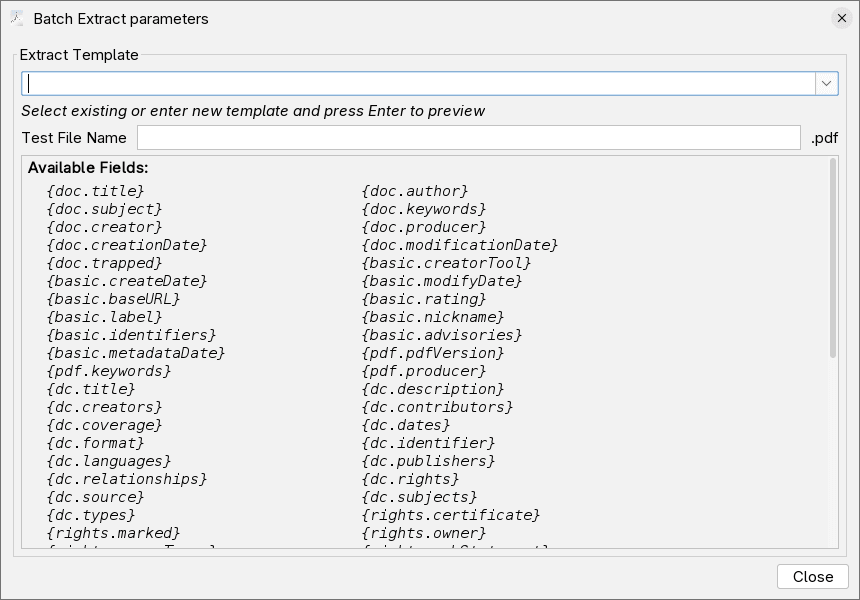
Configure a extract template to be used for setting metadata fields from filename.
Export Metadata as CSV/JSON/YAML
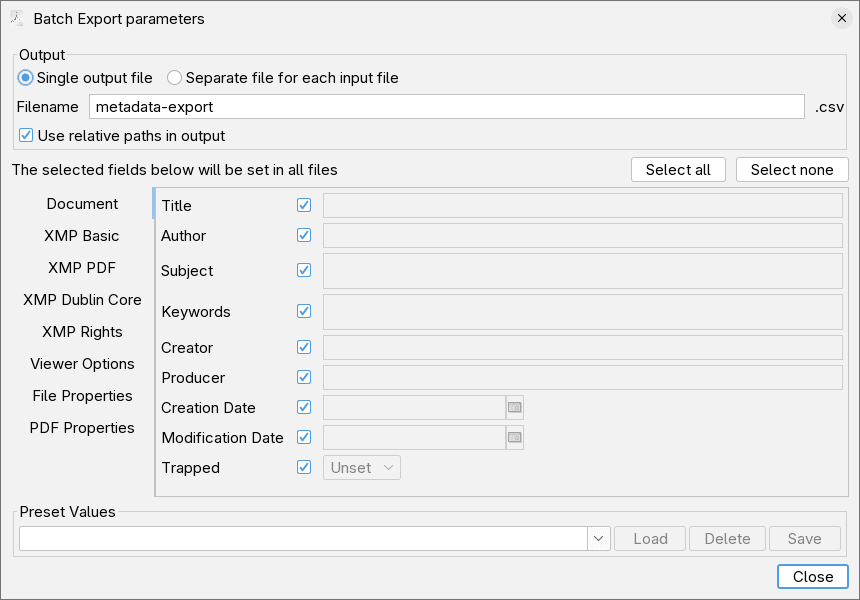
Configure the export output.
Output File Type
- Single output file - the output will be single file with many entries, one for each input file
- Separate file for each input file - the output will be one file per input file , each containing one entry. The file names will be the same as the input file name, with extension adjusted to the output format selected.
Output File Name
When Single output file is selected, you can choose the name of the file,
Use Relative File Names
This options controls how the input file name/path will be represent in the exported metadata.
- Not Checked - the input file name will be absolute path, e.g. C:\Users\test\Documents\1.pdf
- Checked - the input file name will be path relative to the exported output file.
This options is useful when you want to import the exported metadata later, as this field is used to find the input file which to edit.
Select fields to export
Only the values of the selected fields, will be included in the exported metadata file.
NOTE - the path to the input file is ALWAYS included as it is needed for the import operation.
Input Files
List of input files and/or directories on which the batch operation will be applied.
Use the Add File and Add Folder to add files or folders to the list.
If you want to do more than one batch operation on the same input list, check Keep File List,
this will keep the Input Files list after successful batch operation.
Output Folder
Here you can select a folder , in which the output files of the batch operation will be written.
If you leave it empty, the files will go in the directory where the respective input file is . This means that for operations that modify the PDF file, the file will be overwritten if this field is empty.
Output
Status/error for each file processed. Check Save for file to also generate a txt log
with the operation status in the output folder.
Begin
After setting up all the parameters, click Begin to start the batch operation.