PDF Metadata Editor Interface
Main Screen
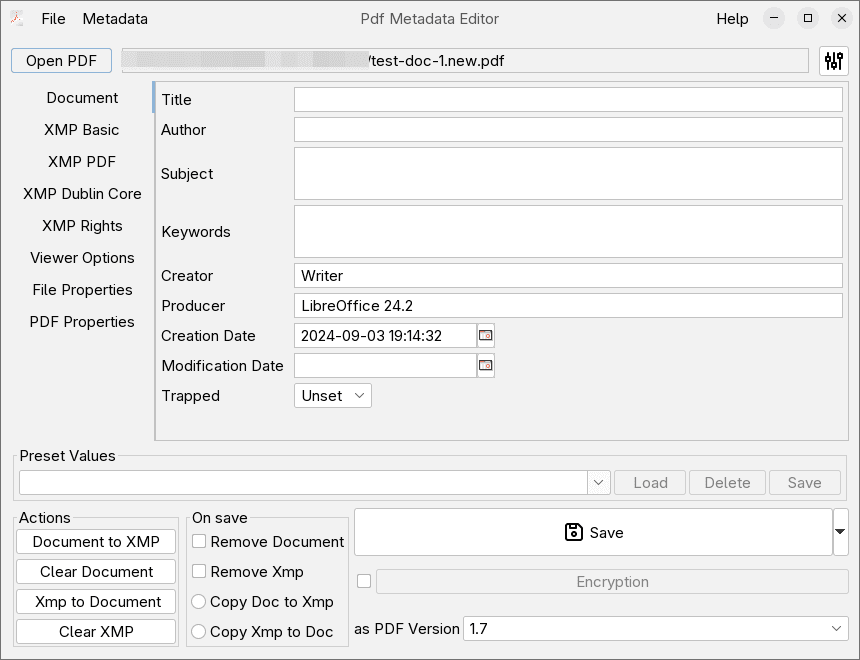
Open File
Click to open a PDF in the editor. You can also drag a file over the editor window to open it. Opening via drag and drop, supports also opening multiple files at once.
Metadata Types
PDF metadata consists of several different metadata types. Use the tab selector to view the different types of metadata
- Document - Document/Info Metadata
- XMP Basic - XMP Basic Schema
- XMP PDF - XMP PDF Schema
- XMP Dublin Core - XMP DC Schema
- XMP Rights - XMP Rights Management Schema
- Viewer Options - Options to control viewer/print settings
- File properties - Filesystem properties, filename, timestamp, etc.
- PDF properties - PDF file encryption and permissions
Metadata Values
Here you can see and change the current metadata values in the file
Preset Values
Presets are a convenience mechanism, that allows you to save certain set of values once, and then quickly apply it on any file by selecting it and clicking the Load button.
Common Quick actions
These represent convenient ways to make complex common edits.
- Document to XMP - Copy the current values of the Document metadata to their respective positions in XMP metadata
- Clear Document - Clear all Document metadata values
- XMP to Document - Copy the current values of the XMP metadata to their respective positions in Document metadata
- Clear XMP - Clear all XMP metadata values
Actions executed on Save
Similar to the Common Quick actions but are persistent settings and are executed automatically on save.
Save Actions
Save the current values. Additionally there is a Save as, and a Save & Rename action. The Save & rename requires a rename template to be configured in the preferences, and automatically renames the file on save, sung the template and the metadata values in the file.
Encryption Options
You can control the Encryption/Password protection of the PDF here. The checkbox controls whether the file will be encrypted on save or not. Clicking the button opens a dialog that allows you to set a password for the file.
Pdf version
Change the pdf version of the file when saving.
Preferences
Opens the Preferences Screen