Go Back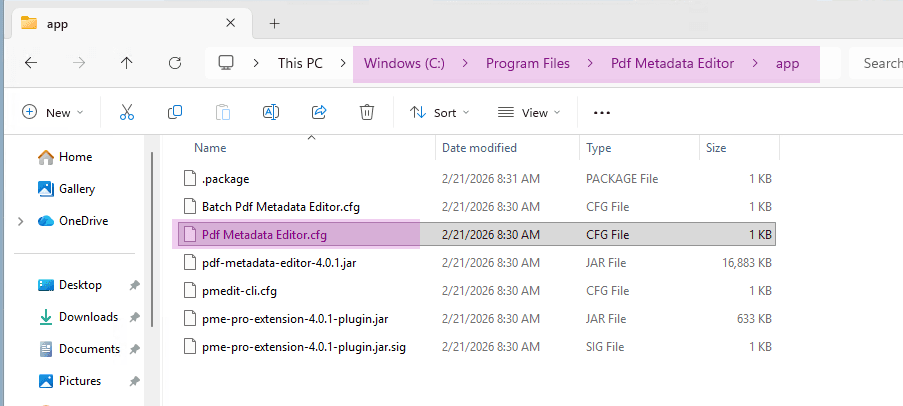
Adding Java Options
- Locate the main application install directory. This is dependent on the installation method used.
- Portable: For the portable version of the application, this will be the directory where the application was extracted to.
- Windows installer: this will be
C:\Program Files\Pdf Metadata Editorby default. - Linux .deb/.rpm: this will be
/opt/pdf-metadata-editorby default. - Linux FlatPak: For system install
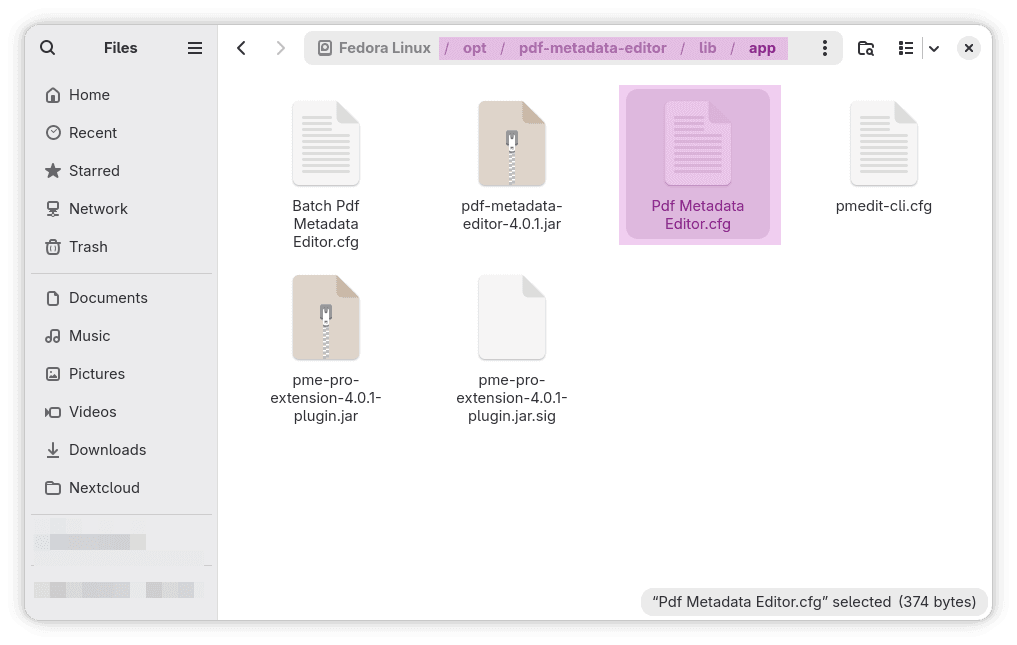
/var/lib/flatpak/app/me.broken_by.PdfMetadataEditor/current/active/files/lib/app/, and for user install~/.local/share/flatpak/app/me.broken_by.PdfMetadataEditor/current/active/files/lib/app/by default.
- Inside the main application directory, Locate the
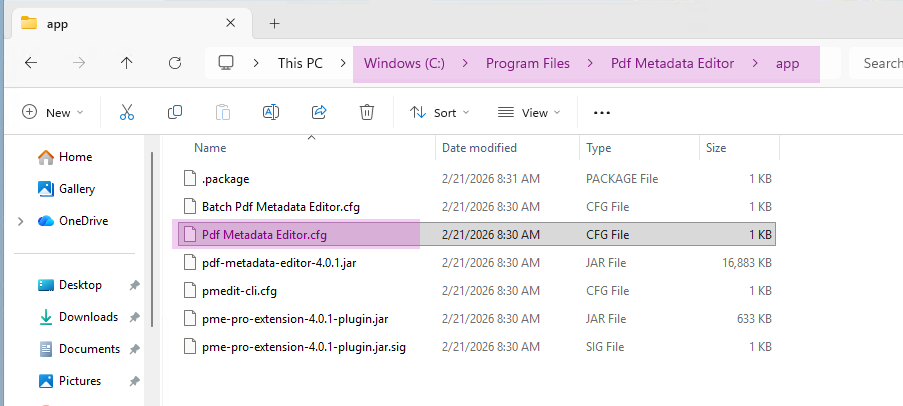
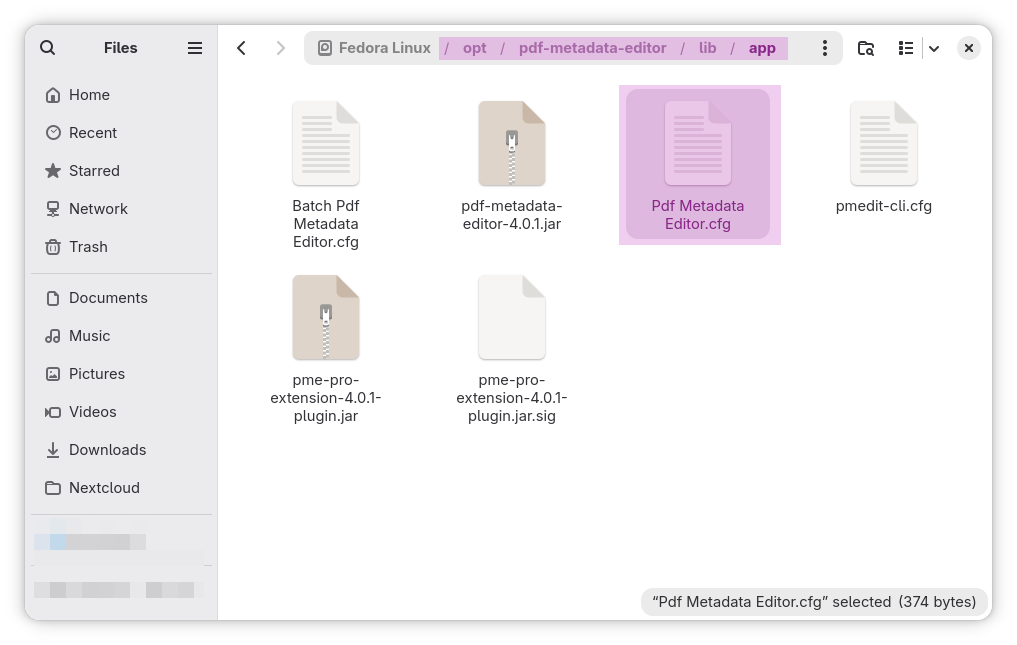
appdirectory containing the java configuration files.
In the app directory there will be a folder named app. On Linux the folder will be under lib/app/.
-
There is one '.cfg' file for each executable. For example for the main application executable that is
Pdf Metadata Editor.cfg -
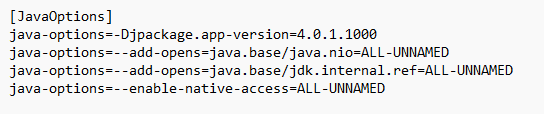
Open the '.cfg' file with a text editor and locate the
[Java Options]section. This section contains the Java options that are passed to the Java runtime when the application is launched.
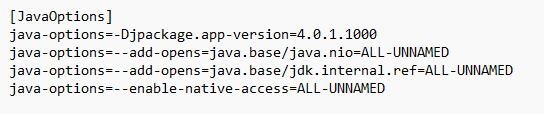
- Add the needed java options to this section. Do not change the existing options, as it will break the application.
For example, to increase the maximum heap size to 4GB, add the following line to the [Java Options] section:
java-options=-Xmx4g